TABLE OF CONTENTS
- FAQ
- Getting Started
- Browse Flights
- Join a Flight
- Create a Flight
- Calendar Reminders
- In-Flight Features
- Optional Voice Channels
FAQ
1. What is Groupie?
SkyNet Groupie is a group flight planning and coordination tool inside SayIntentions.AI. It lets pilots create, join, and fly together in organized group flights—with shared flight details, parking assignments, messaging, voice coordination, and live in-flight tracking—without relying on messy Discord planning.
2. Who can use SkyNet Groupie?
SkyNet Groupie is currently in Beta and available to ALL SayIntentions.AI Subscribers and NON subscribers as Groupie Guests.
3. How do I access Groupie?
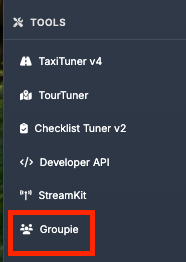
Log in to the SayIntentions.AI Pilot Portal, then navigate to Tools → Groupie from the left-hand menu. From there, you can browse upcoming flights, create your own, or manage flights you’ve joined.
4. What information can I see when browsing group flights?
When browsing flights, you can see:
Flight name
Departure and arrival airports
Load-in and off-blocks times
Number of registered participants
Registration status (open or closed)
Who created the flight
Where everyone is parking
Message Board
& More!
Clicking a flight opens the full details page with routing, gate assignments, messaging, and more.
5. How do I join a group flight?
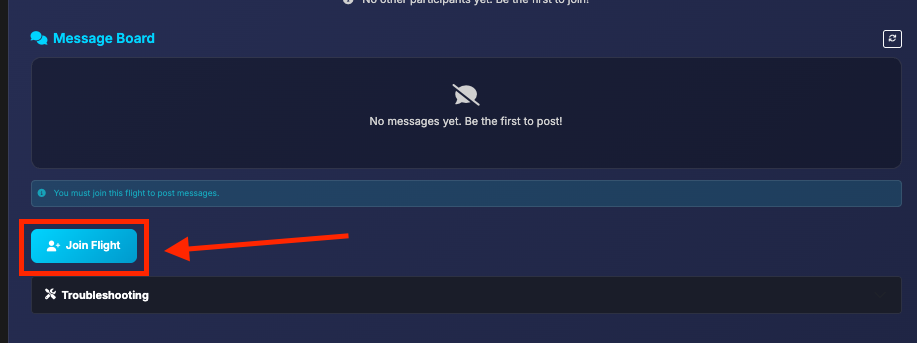
Open the flight’s details page and click Join Flight. You’ll be guided through:
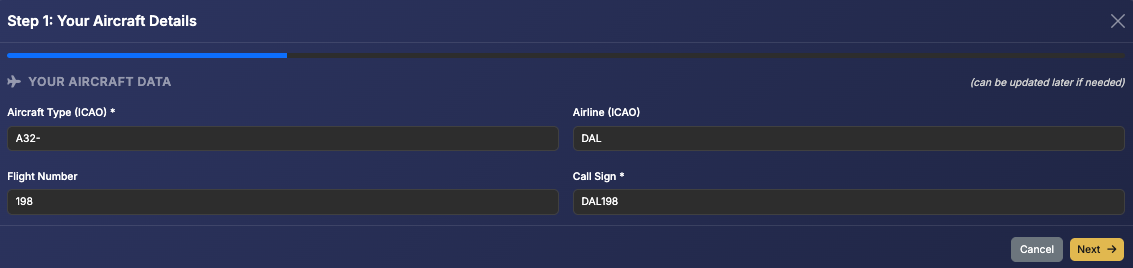
Entering your aircraft, airline, and callsign
Selecting parking at departure and arrival airports
Reviewing and confirming your registration
Once confirmed, you’ll appear in the participant list and gain access to the flight’s message board.
6. Do I need SimBrief to use Groupie?
No, you can manually enter flight details if you want. But it is recommended as a quick way to update the group flight with the latest simbrief details, including route, runways, distance, time, etc.
Groupie includes deep SimBrief integration for both creators and participants. If you do use SimBrief, you’ll benefit from quick-file tools, easy plan access, and tighter integration with the group’s flight details.
7. How do gate and parking assignments work?
Groupie uses TaxiTuner v4 data to show available parking:
Gates filtered by airline (or all gates, if preferred)
Visibility into where other participants plan to park
This helps avoid conflicts and keeps the group organized at both departure and arrival airports. If you want, you can opt for "I'll find my own parking". This can be helpful at smaller airports where not much parking is available.
8. What’s the difference between Public and Private group flights?
Public flights appear in the Groupie flight list and can be joined by anyone with access to Groupie.
Private flights are hidden from the public list and can only be joined using a shareable invite link.
Both will appear in your My Flights view if you created or joined them.
9. What is the Group Code, and do I need to enter it manually?
The Group Code is used internally by SayIntentions.AI to identify participants in the same Groupie flight.
You do not need to enter it manually—the SI app automatically detects your Groupie flight and sets it for you.
10. How does voice communication work during a Groupie flight?
Every Groupie flight includes:
A dedicated COM2 GROUP frequency automatically tuned in the SI app (this has a slight delay).
Optional Discord voice support
During flight creation, you can:
Provide your own Discord voice channel link
Let SayIntentions.AI automatically create a private Discord voice channel for your flight
Opt out of voice entirely and rely on the COM2 GROUP frequency
11. When are Discord voice channels created and removed?
If you choose automatic creation:
The Discord voice channel can be opened by the Creator up to 15min before the load in time, from the Groupie Flight page. Once opened, the discord link will be shown to all participants in the Groupie Flight Details page. The Creator should try to make sure that everyone has registered before opening the Discord Voice Channel, because the automation uses the current list of participants to the channel. Late joiners won't have access and may need to be manually added via Discord.
Only Groupie participants can see and join it
The channel is automatically closed when the flight ends or 24 hours after load-in, whichever comes first
If you provide your own voice channel link, the link is visible to registered participants as soon as the flight is created. You will be responsible for managing the voice channel either in your own discord server, or other platform.
12. What happens when the flight actually starts?
When load-in time arrives:
The flight page switches to a live map and stats view
All Groupie participants are tracked automatically
You can see position, altitude, speed, ETE, distance remaining, and landing rates (MSFS only)
No extra setup is required.
13. Is Groupie suitable for large multiplayer events?
No. SkyNet currently does not sequence multiplayer aircraft, and group communications may have a slight delay. Groupie works best for small-to-medium groups of friends. Improvements to sequencing and comms are already on the roadmap.
14. Can I add the flight to my calendar?
Yes. Each Groupie flight includes buttons to:
Download an ICS calendar file
Add the flight directly to Google Calendar
15. Is Groupie finished?
No—Groupie is in Beta. Bugs and rough edges are expected. However, we feel that the core components are there and working for all users to enjoy. We welcome additional feedback during this phase as it will directly shape future improvements and features.
16.How do I invite someone who is not a SayIntentions.AI subscriber?
The Groupie Details Page for your flight will have a share link. Simply share this link to anyone you'd like to be able to join (both SayIntentions.AI subscribers and non-subscribers). If they are not a subscriber, or not logged into their account, they will be presented with a SayIntentions.AI Pilot Portal Login screen. They can either login to their account, OR click Create Account. A non-subscriber DOES NOT need to choose a paid plan. They can instead choose the 24hr trial option. This will give them a trial of premium for 24hrs, and Groupie will still be accessible after the premium trial expires.
17. I'm not a SayIntentions.AI Subscriber, but got invited to a Groupie. How do I join?
The groupie flight creator will send you a share link for their flight. Since you're not a subscriber you'll need to follow these steps:
1. At the login screen, click Create Account
2.Complete the signup form. You DO NOT need to choose a paid option. The 24hr trial option will get you unlimited access to Groupie flights in the future.
3. Once you've signed up, login to the Pilot Portal at https://p2.sayintentions.ai
4. After logged in, navigate to the link the creator sent you again. This time, since you are now logged in, you should see the Groupie Flight Details page.
5. Review the details, and if you decide to join, click the Register button at the bottom of the page, and complete the registration details.
6. Check this page leading up to the flight time for any message updates from the creator or other participants.
7. At load in time, you're ready to go! Load up the sim, and feel free to keep the groupie flight details page open to see a live map and stats for all of the group flight participants.
18. Are there limitations for Non-SayIntentions.AI Subscribers/Guests?
Yes—Guests (Non-Premium Subscribers) will not be able to communicate with ATC or the group comms channel, outside of the 24hr premium trial. However, they will still be visible to all other participants via the SkyNet multiplayer injection, and they will still be able to see everyone else in the group flight. They will show up on the live groupie flight map and stats table as well. They can also still participate in the message board on the Groupie Flight page.
Getting Started
1. Navigate to the SayIntentions.AI Pilot Portal.
2. In the left navigation, click Groupie in the Tools section.
Browse Flights
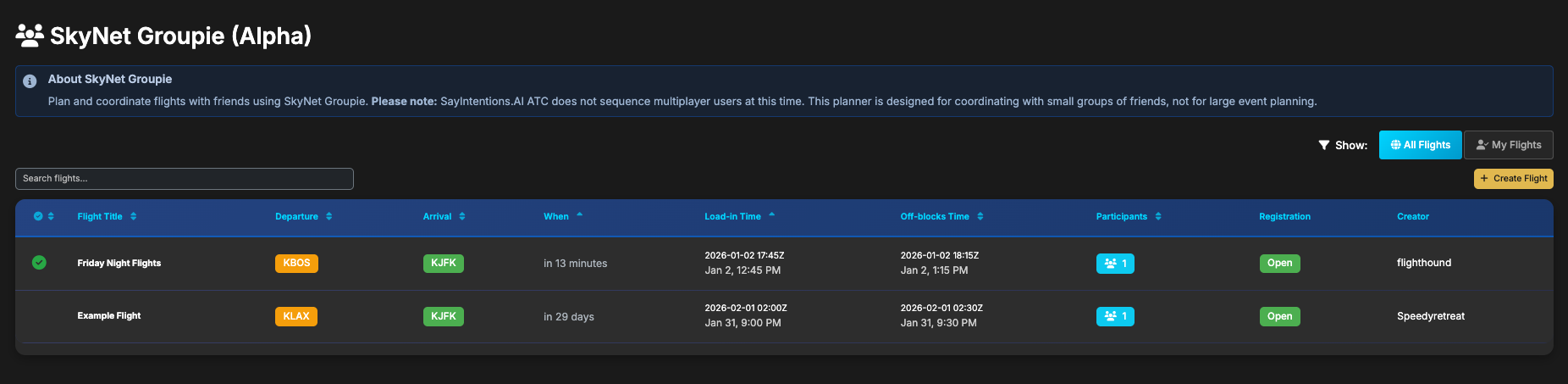
Browse the list of upcoming flights. You can see at a glance, the name of the flight, the departure and arrival airports, the load-in and off-blocks scheduled times, the number of registered participants, registration open/closed status, and who created the flight.
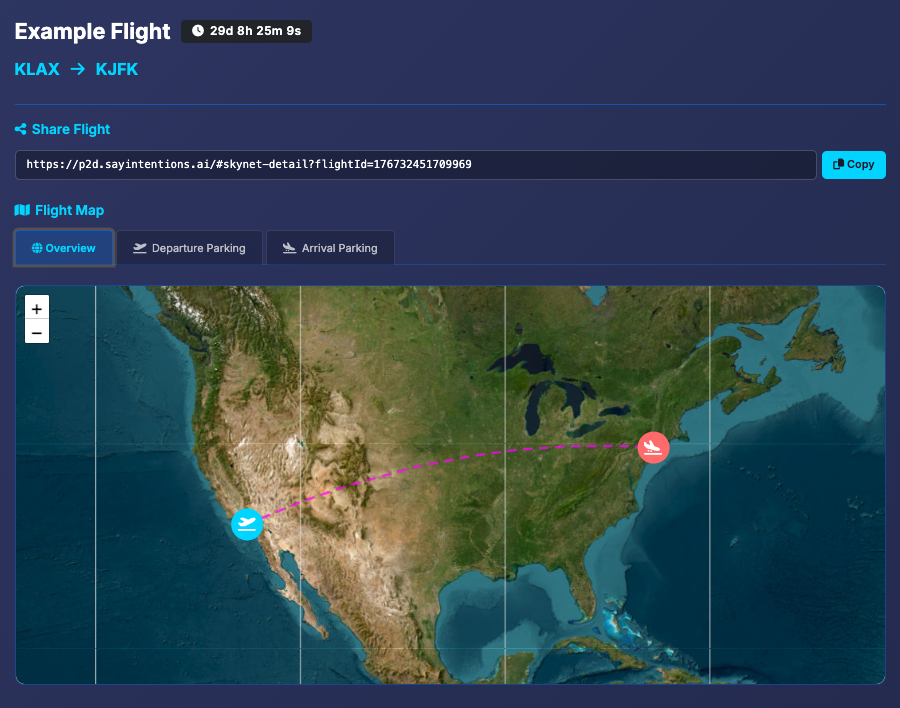
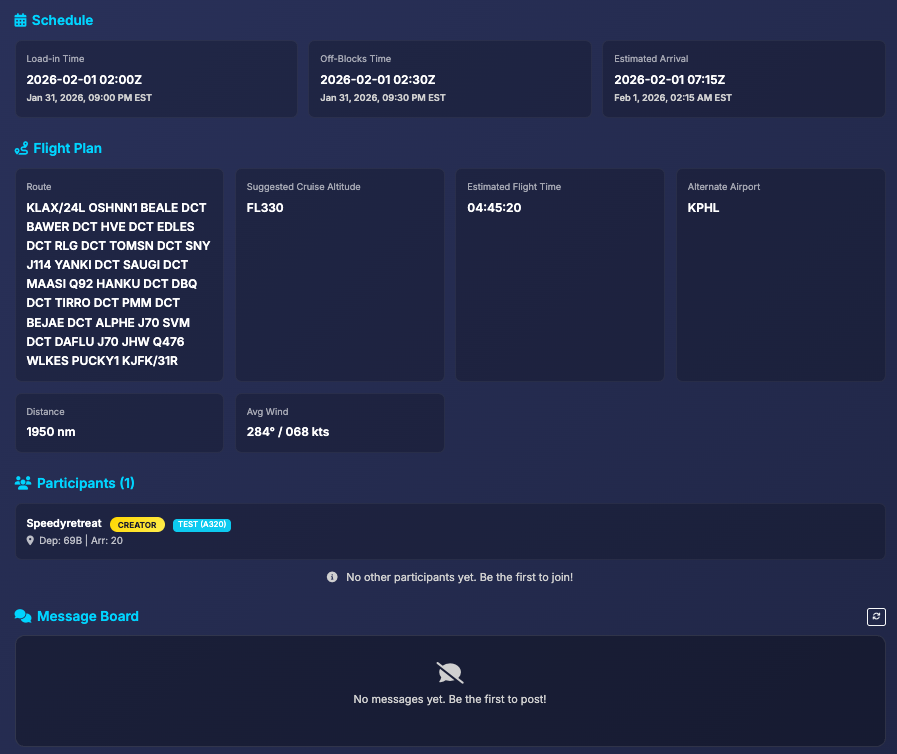
Click any row in the table to view more details about the upcoming flight, such as flight plan details, message board, gate assignments and more.
Join a Flight
Once you find a group flight you want to join, simply click Join Flight at the bottom of the page.
Next, provide your aircraft, airline, and callsign data. If you are not flying for an airline, simply add your aircraft ICAO and callsign you wish to use.
Next, choose a parking spot at the departure airport. Thanks to TaxiTuner v4, you'll be able to see gates available based on your airline, or all gates. You'll also be able to see where other participants are planning on parking for the group flight.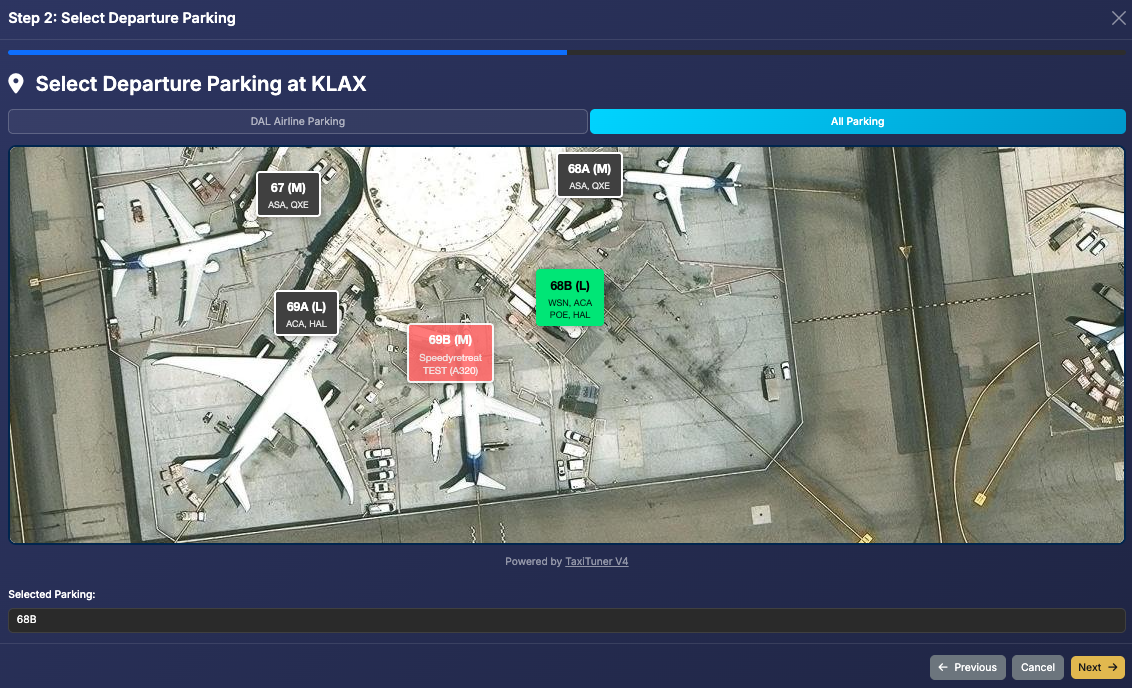
Next, pick a parking sport for the arrival airport.
Finally, review your registration and click Confirm Participation.
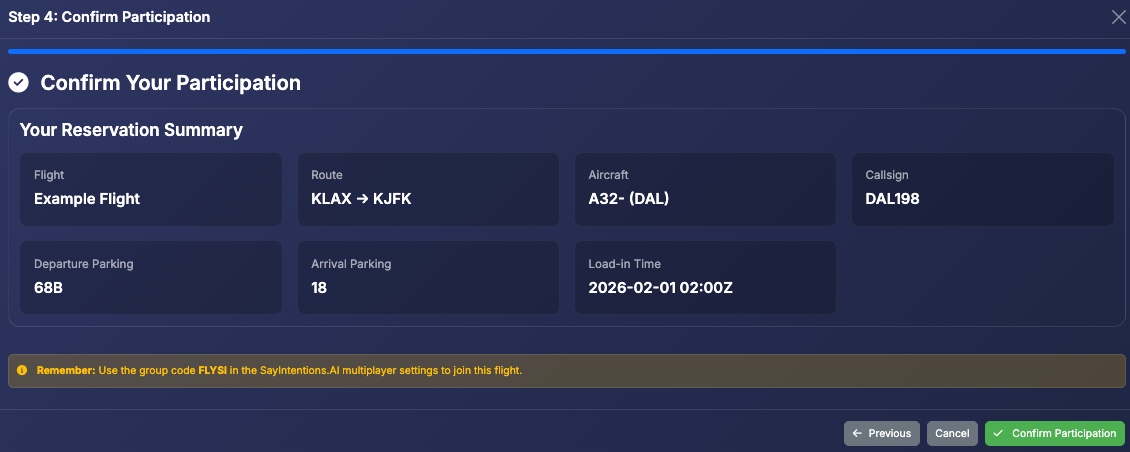
That's it, you're registered for the group flight and should see yourself listed as a participant! You can now participate in the message board too!
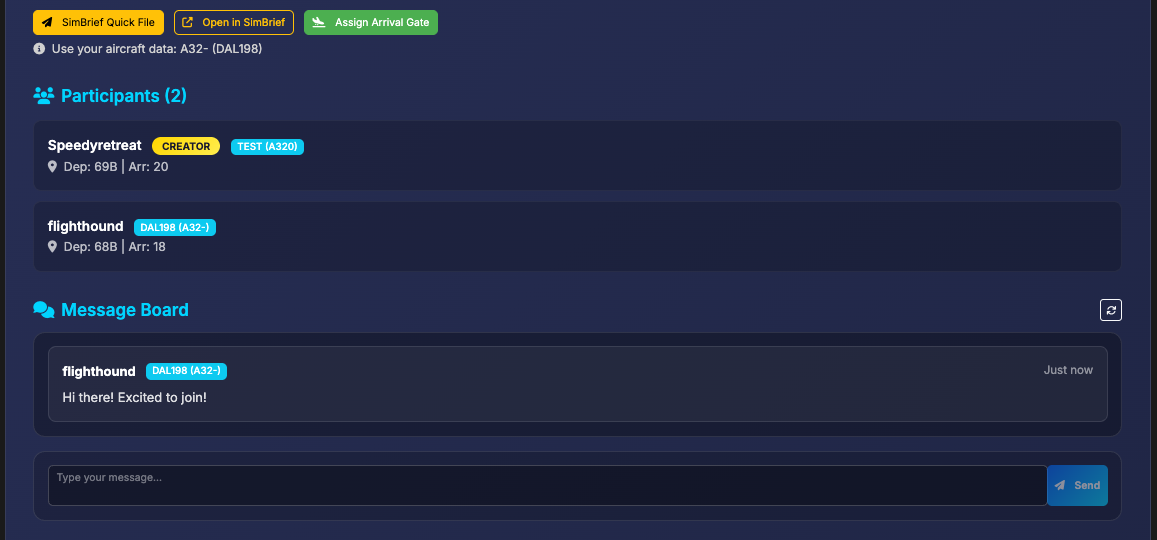
Keep an eye out for any new messages or route updates leading up to the load in time for your flight. Use the Simbrief Quick File or Open in Simbrief buttons to quickly file your flight plan before the flight (recommended to do this soon before the flight starts. Too far in advance will get you different routes/weather/runways, etc).
You can easily find your flight page at any time by navigating back to Pilot Portal > Tools > Groupie. Then above the table of flights, on the right, click My Flights. This will give you a filtered view of flights that you either created or are registered for.

Create a Flight
Want to create your own group flight? Learn how below.
First, click the Create Flight button in the table view of all group flights.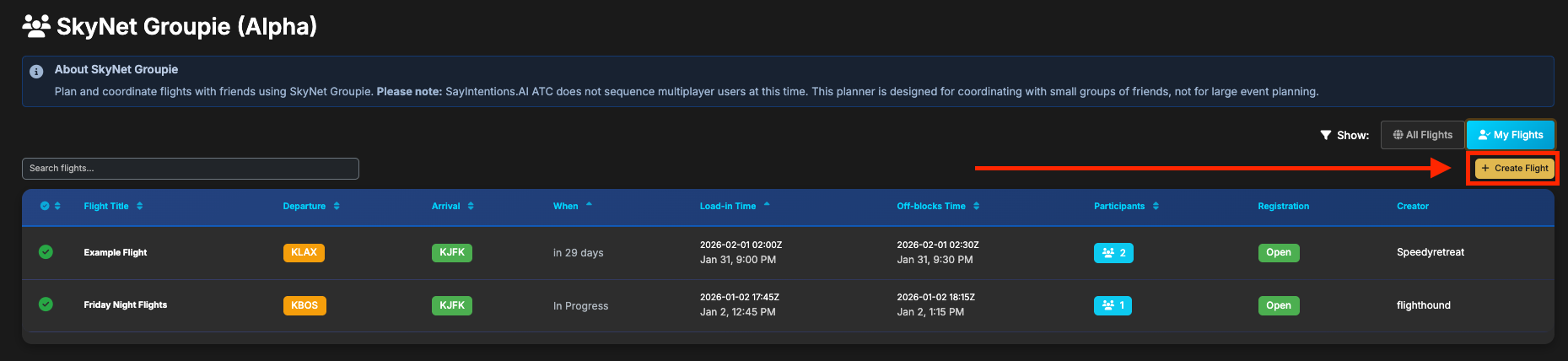
Next, add a name for your Groupie Flight.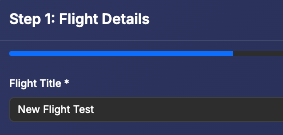
Pick your departure and arrival airport ICAOs. Note that the Hubs of the Day options are conveniently added available to use if you wish.

Choose the load-in date and time. This is the time you want your participants to start loading into their gates. The off-blocks time will auto-generate to 30min after the load-in time. You CAN adjust this if you wish though (e.g. if you want longer or shorter time). Off-Blocks is the time you'd like your group to start pushing back/making their way to the runway to start the flight.
At this time, group flights may be scheduled no more than 30 days into the future.
Complete your aircraft details. Choose an aircraft ICAO, airline, flight number, and callsign. Note that if you are not flying for an airline, you can just add an aircraft ICAO and create a callsign. 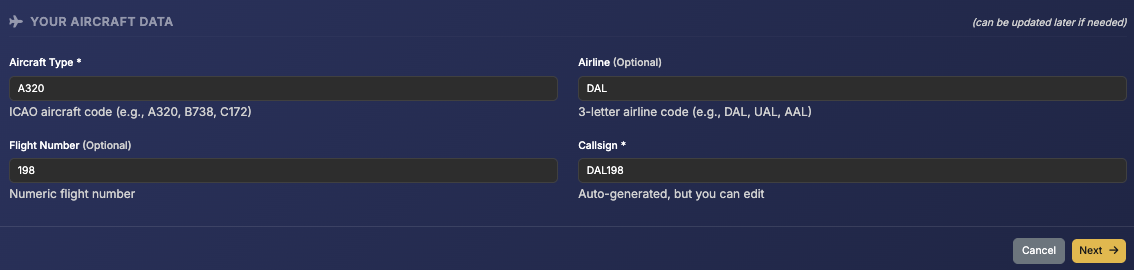
Click Next.
Click Quick File with SimBrief or Skip Simbrief and Enter Manual Details.
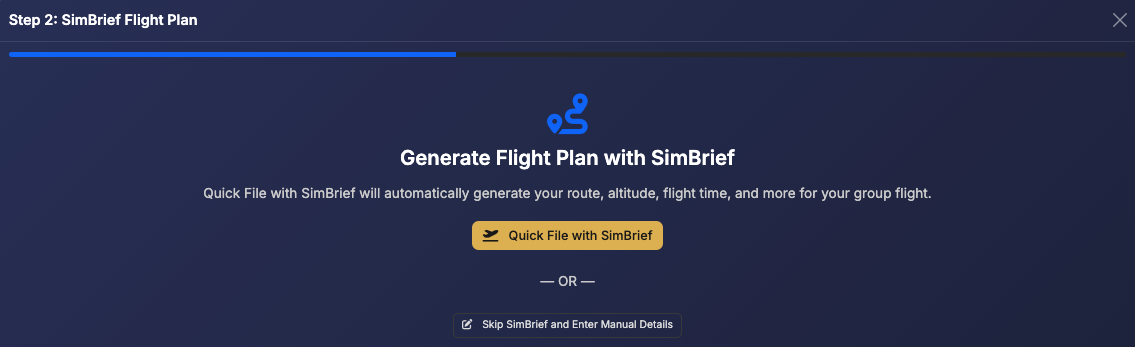
Filing with Simbrief is the quickest and easiest way to auto-generate the details for your flight. If choosing this route, make sure your simbrief account has been configured in the Pilot Portal Settings.
After clicking Quick File with SimBrief, wait a few seconds and then you should see the screen below: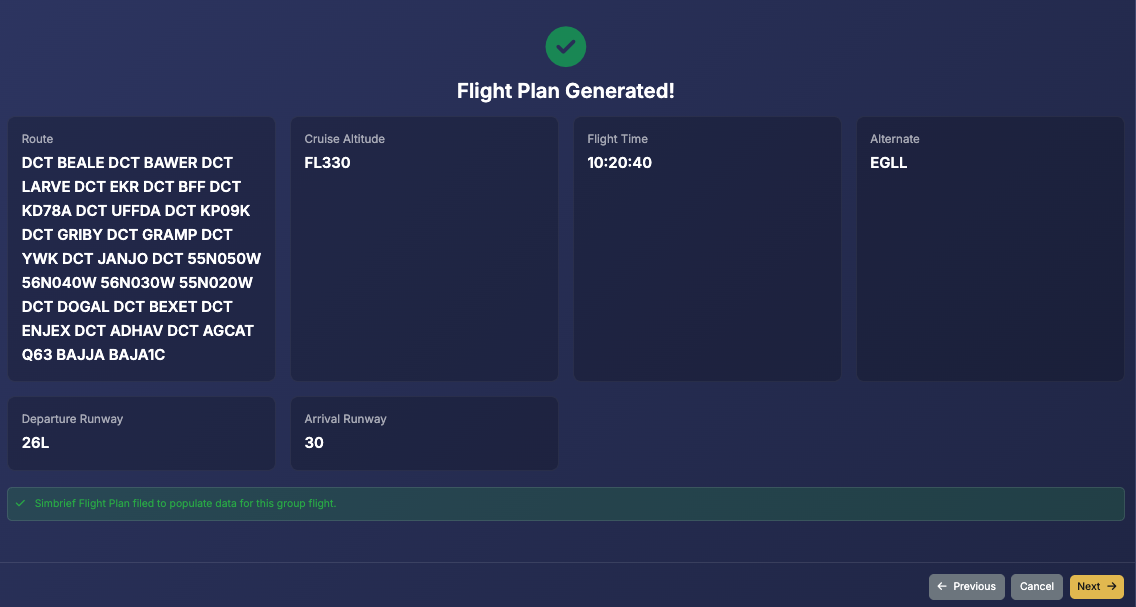
If manually entering details, you can optionally add a custom route, suggested cruise altitude, estimated flight time, and alternate airport.
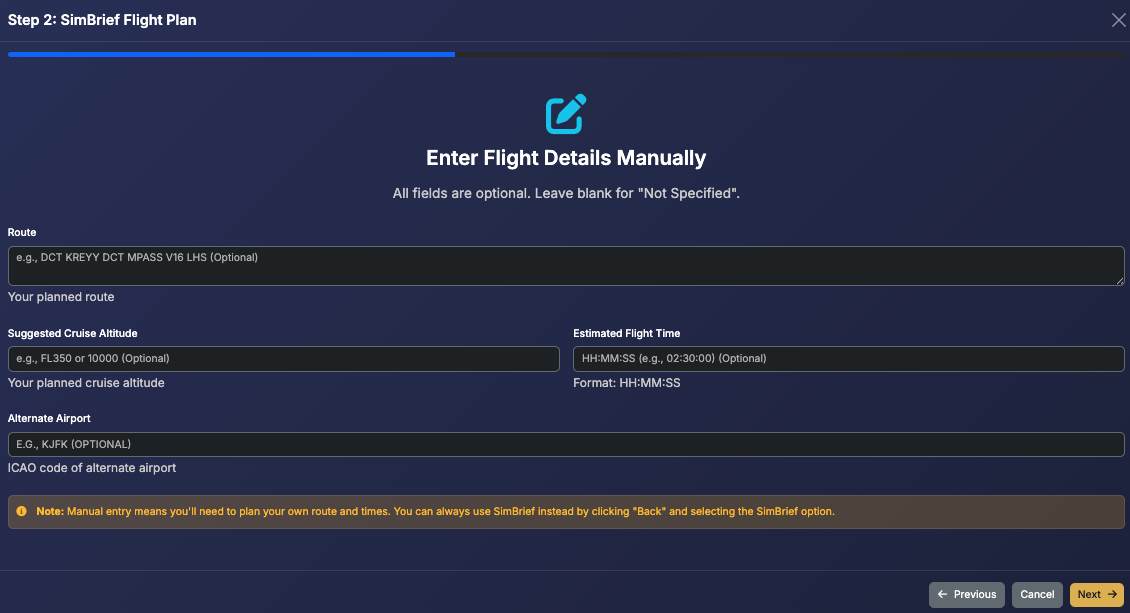
Click Next.
Choose your parking for both the departure and arrival airports.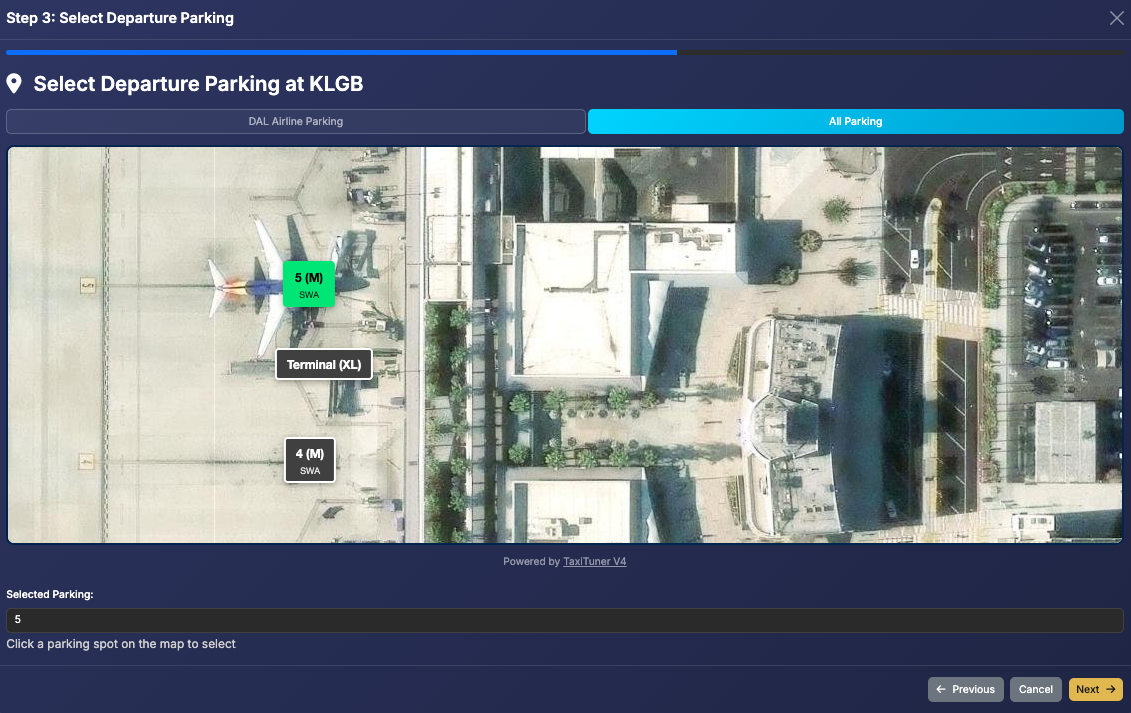
Click Next.
Choose whether you want your group flight to be Public or Private.
- If you choose Public, it will be visible on the table for others to browse and join.
- If you choose Private, it will not be visible on the table for others to browse in join. Instead, you'll need to send a share link (which will be available after the flight setup is complete) to the people you'd like to join. Private flights will be visible in your My Flights section of the group flights table, as well as for any of your guests who join via the share link.
Add a Group Code.
- The SI app will detect Groupie participants and automatically update the group code for them. But this is still needed for the background processes to properly identify your group flight.
Voice Communication: Choose whether or not you want to add a voice channel service link. A group COM2 channel will be automatically added in the SayIntentions.AI app for you to communicate with. But there is a slight delay with this currently. So, you also have the option to provide your own voice channel link(perhaps if you have your own discord server), or you can opt for SayIntentions.AI to automatically create one for you when the load in time arrives, in the SayIntentions.AI discord server. This channel will only be available to you and your group pilots. More about this feature will be discussed further below in this guide.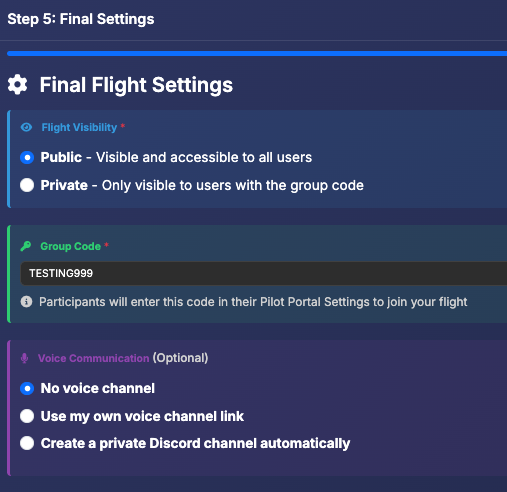
Once configured and reviewed, click Submit Flight. 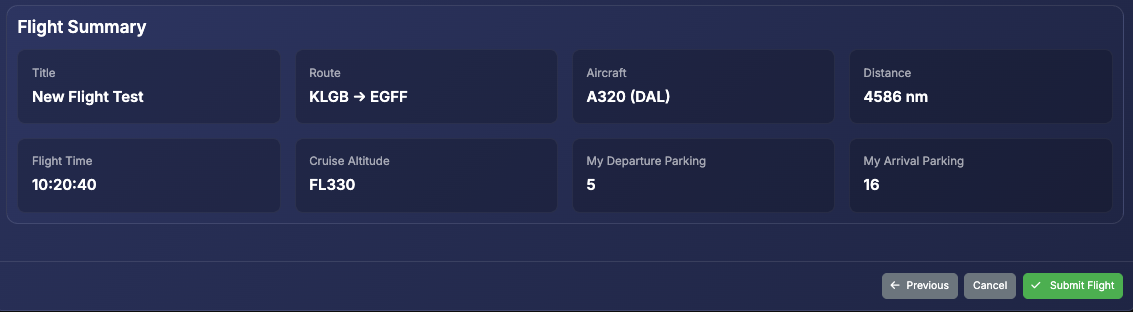
Calendar Reminders
Want to set a calendar reminder for your upcoming Group flight? Click the ICS or Google Calendar buttons at the top of the group flight's page:
In-Flight Features
When the flight time arrives, the group flight page will show a live map and stats table. This will show everyone using the group code for the flight (which is auto-set for each participant).
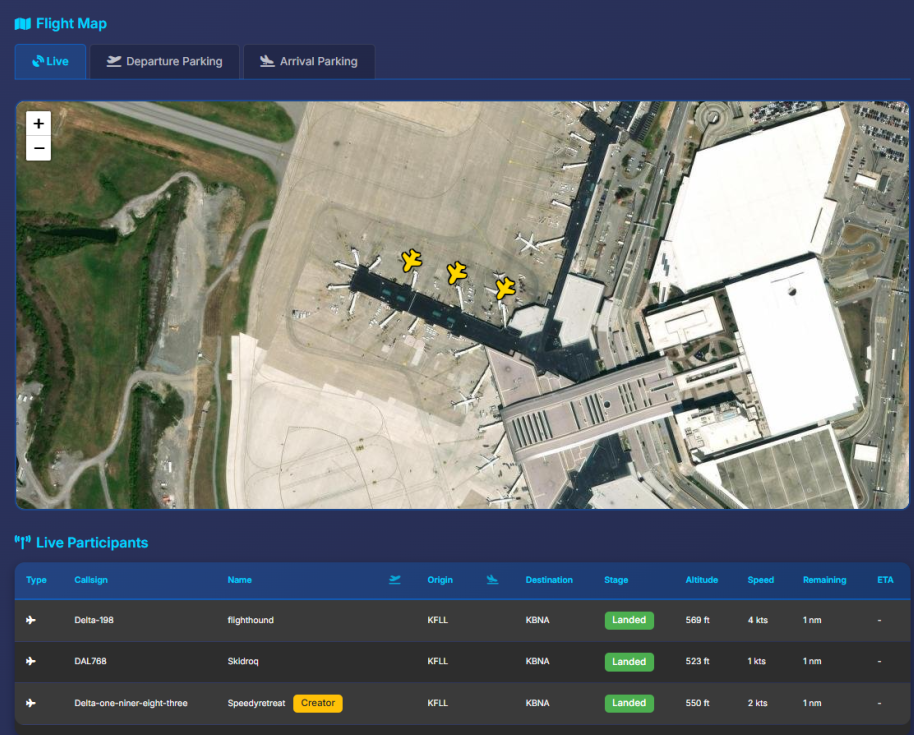
You can also use the message board to send messages during the flight if you wish. Note that this is more of a message board than a live chat, so messages may not be instant. There is a refresh button available to get message board updates on-demand as needed.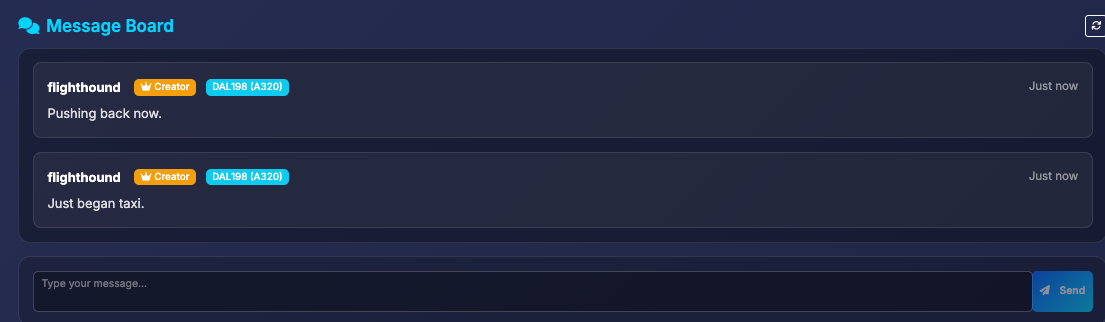
Optional Voice Channels
During flight creation, you can choose to opt out of a voice channel, provide your own voice channel link, or let SayIntentions.AI create one for you in the SayIntentions.AI discord.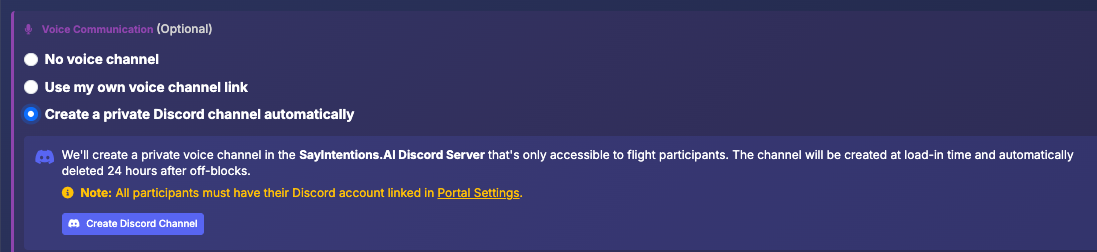
If you choose to let SayIntentions.AI create a voice channel for you, it will automatically be created at the load-in time for your flight. You and any participants will be able to join. It will be invisible to other discord users (with the exception of SI Discord Server Admins).
Only people who have joined your flight will be able to see the voice channel information on the flight details page: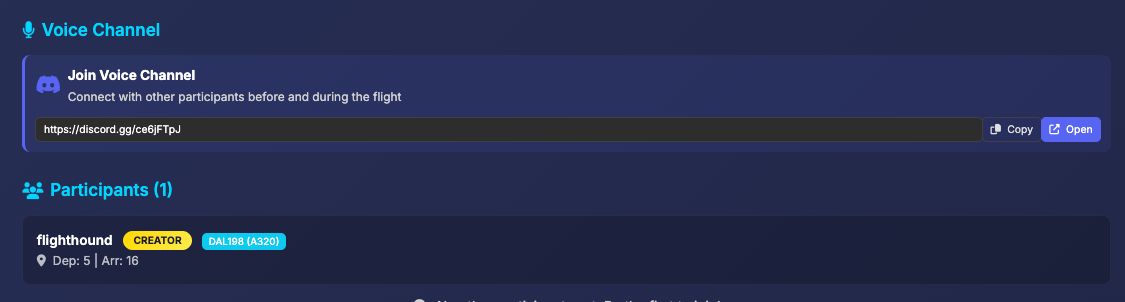
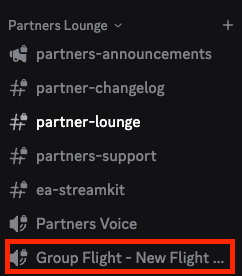 The discord channel will be automatically closed either when the creator of the flight ends the groupie flight in the Groupie Flight Details page, or 24hrs after the load-in time of the flight. Whichever comes first.
Advanced Tips for using Discord Voice Chat with SayIntentions during a Groupie Flight:
Using Discord for voice chat will give you real time interaction with other members of your
Groupie flight!
Please use the following tip to mute your audio transmissions to SI ATC on Discord voice chat.
Hearing you speak to ATC twice, once over Discord, and then again on the radio, is a sure way to
NOT get invited back to the next group flight.
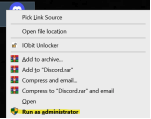
1. You MUST start Discord as an administrator for this to work
- Right click on the Discord icon and select ‘Run as Administrator’
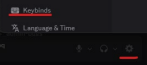
2. Click the Discord Settings cog in the lower right below the channel list and select
Keybinds
3. Click 'Add Keybind'
4. Select ‘Push to Mute from the dropdown Action list
5. Click ‘Edit Keybind’ to the right of the Action item and press the same PTT button you
have set in the SI Client to talk to ATC
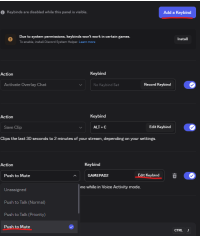
6. You will also need to perform the ‘Push to Mute’ steps for any SI Intercom PTT buttons you have set up
7. That’s it! You can also set your Discord Voice to Push to Talk using a different PTT button than the one you use to talk to SI ATC and Intercom. This is done in Settings, Voice & Video, then turn on Push to Talk. You then set up a separate PTT button in the Keybinds.
Just don’t forget which button to press to talk to your fellow Groupies or you will be
telling your latest Dad joke to the ATC controller!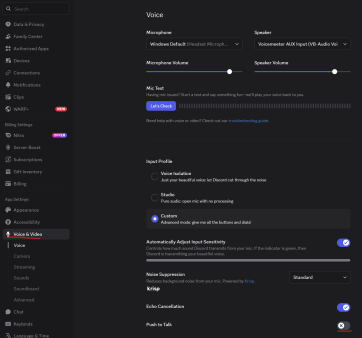
Was this article helpful?
That’s Great!
Thank you for your feedback
Sorry! We couldn't be helpful
Thank you for your feedback
Feedback sent
We appreciate your effort and will try to fix the article