The Issue
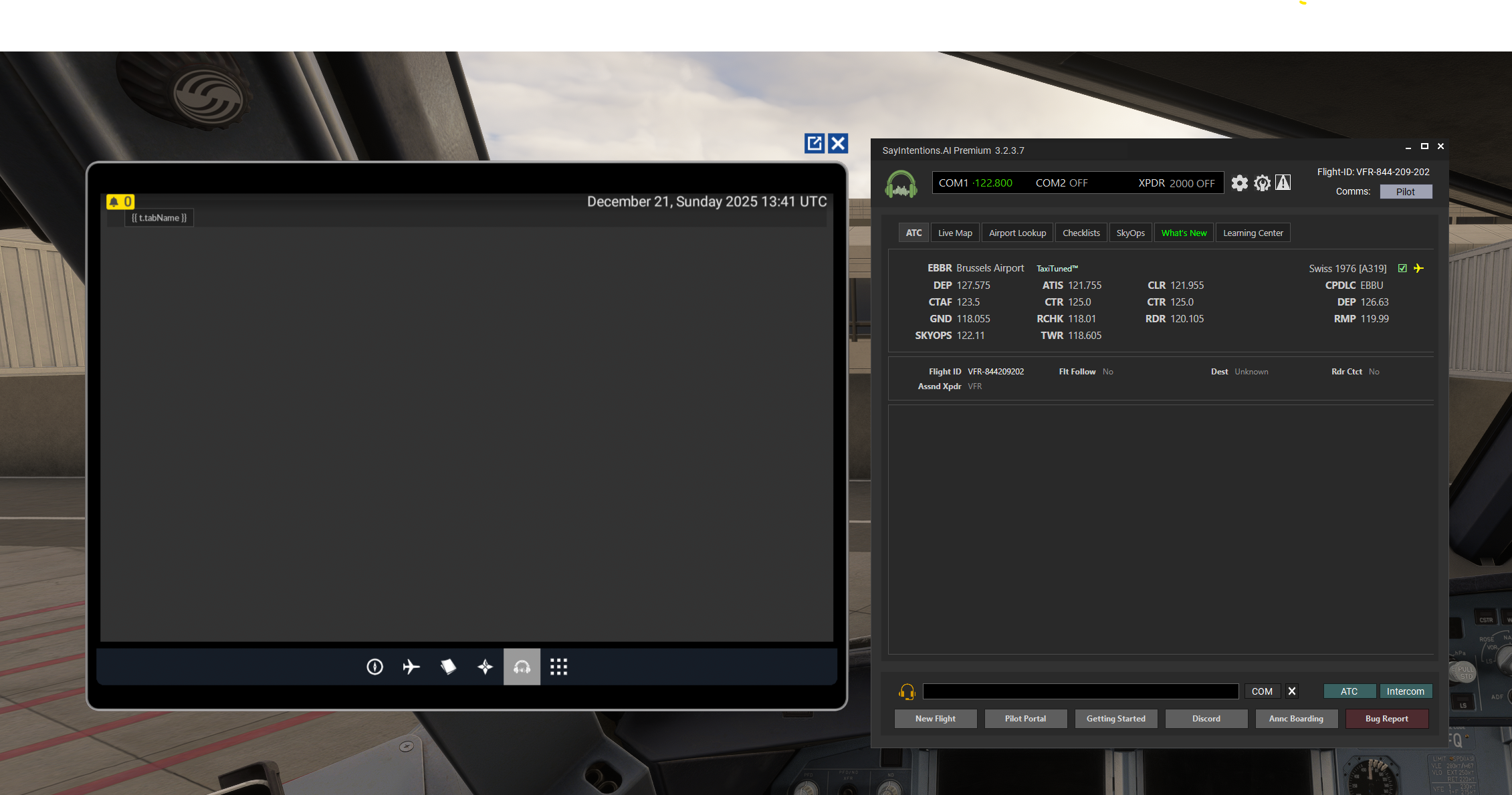
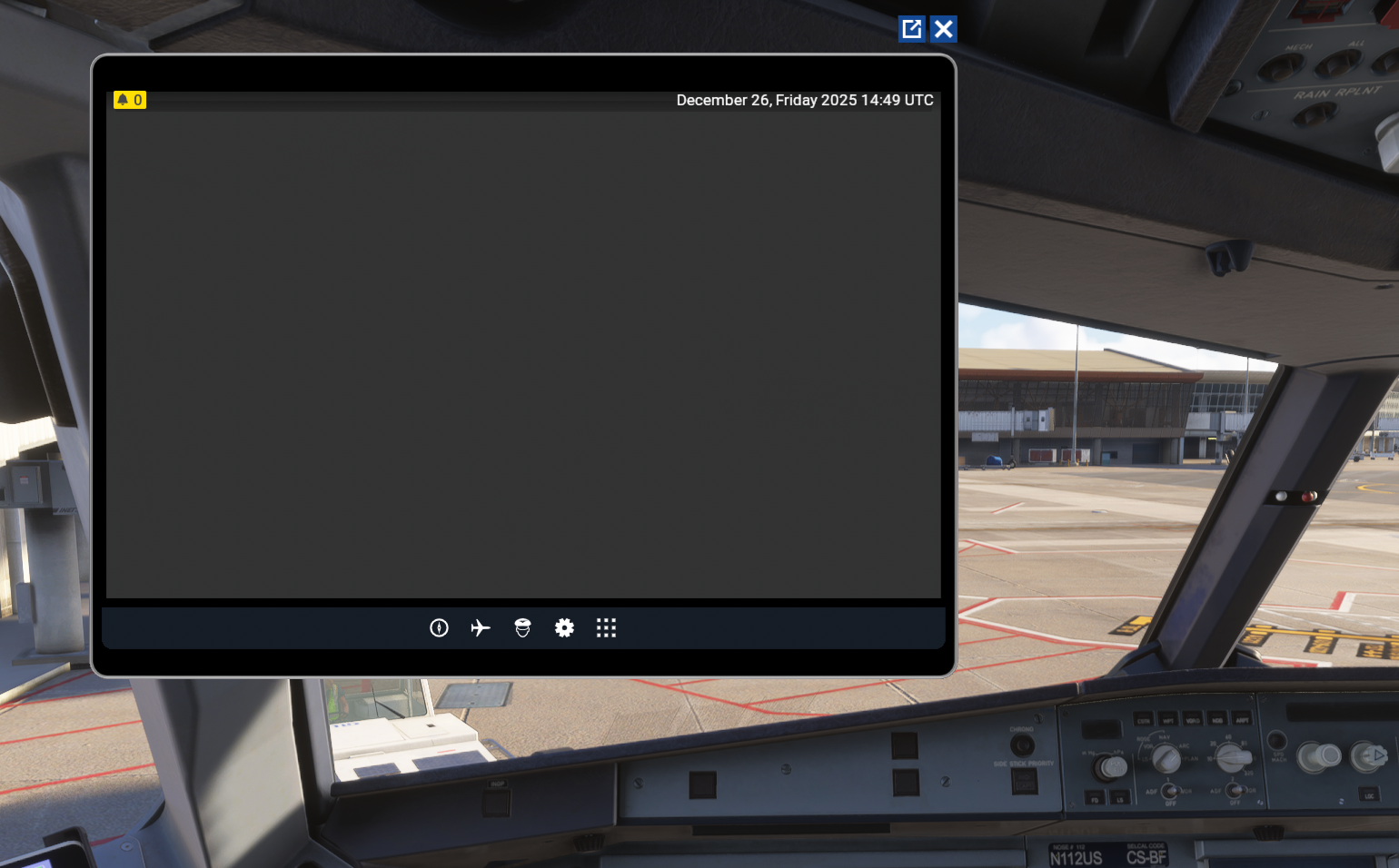
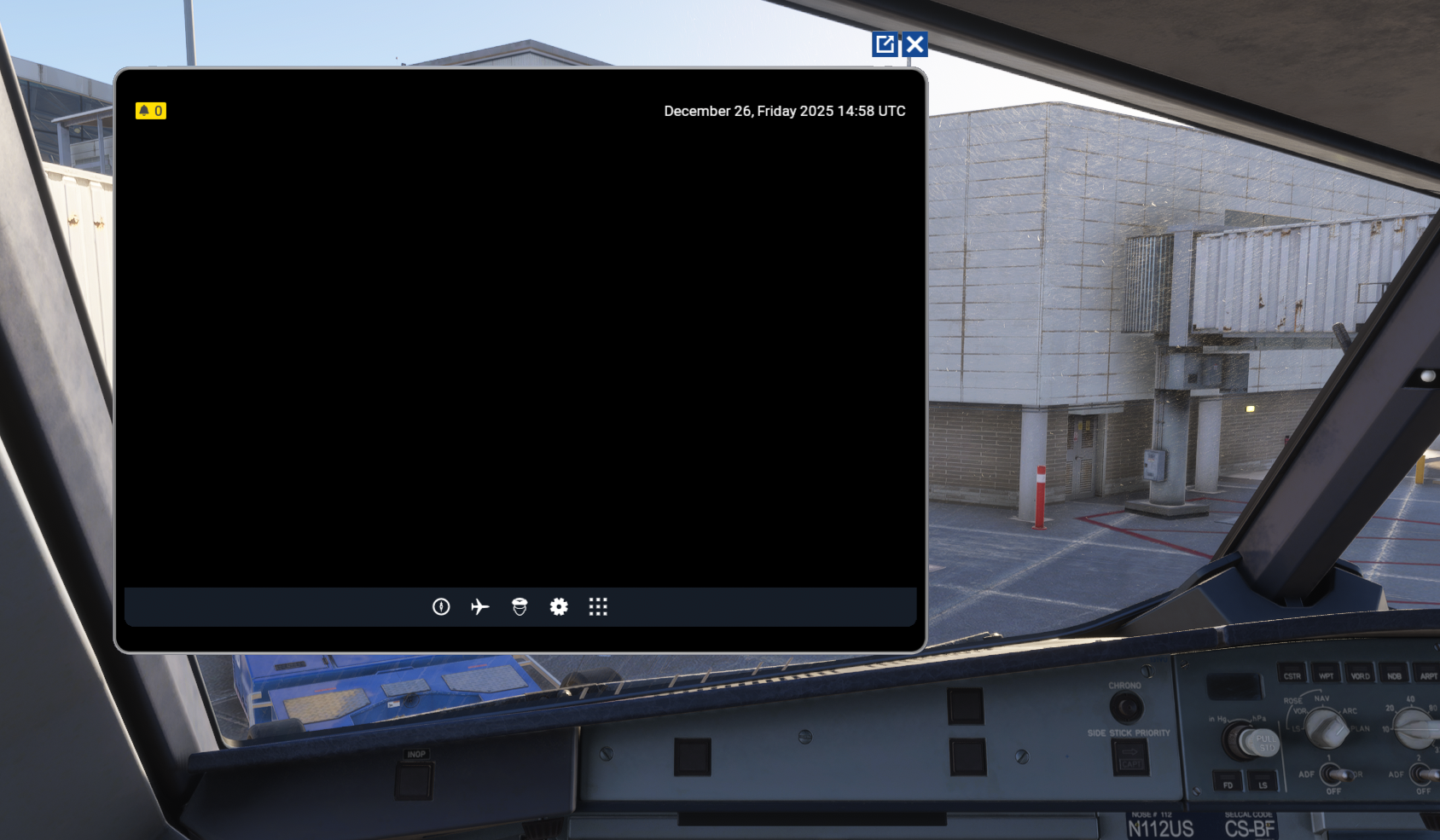
There have been reports of intermittent issues where the SayIntentions.AI EFB app within the MSFS 2024 EFB may appear blank or mostly blank. Example screenshots are shown below:
Why Does This Happen?
The SayIntentions.AI EFB app, as well as Commlink and many features within our PocketSky mobile app, all rely on an active SayIntentions.AI flight. This means the SayIntentions.AI Desktop Client must be open and connected to the simulator.
Sometimes, if the EFB app is loaded before the SayIntentions.AI Desktop Client is started and connected, or if the desktop app is closed and reopened during a flight, the EFB can end up in a “blank” state, as shown above.
Fortunately, for https://comlink.sayintentions.ai/, you can simply refresh your browser to resolve the issue. However, the MSFS 2024 EFB does not provide an easy way to force a refresh. To correct this, you must either exit the flight or restart the flight entirely. Simply closing and reopening the EFB, pausing the simulator, or similar actions will not resolve the issue.
Since this is not an acceptable solution when you’re in the middle of a flight, we do have an interim workaround that allows you to refresh the EFB without exiting your flight, while we continue to investigate a more graceful long-term solution.
Solution
1. Best Approach:
Make sure the SayIntentions.AI Desktop Client is opened before loading the MSFS 2024 EFB for the first time during your flight. This helps ensure the EFB app loads its content properly.
2. Next Best Approach:
If you didn’t follow step 1, see a blank EFB screen, and have just loaded in without doing much configuration yet, your best option is to restart or end/begin your MSFS 2024 flight. This will force the EFB to reload as part of the new flight session.
3. Force Reload Approach:
In situations where you need to restart the SayIntentions.AI Desktop Client during a flight and the MSFS 2024 EFB ends up in a blank state, you can force the EFB to reload using the MSFS Debugger tool by following the steps below. This approach should only be used when restarting your MSFS 2024 flight is not an option.
Steps:
a. Open a Chrome Browser window.
b. Enter http://127.0.0.1:19999 into the URL input field and press Enter.
This must be done on the same computer that your simulator is running on.
c. You will see a window like below:
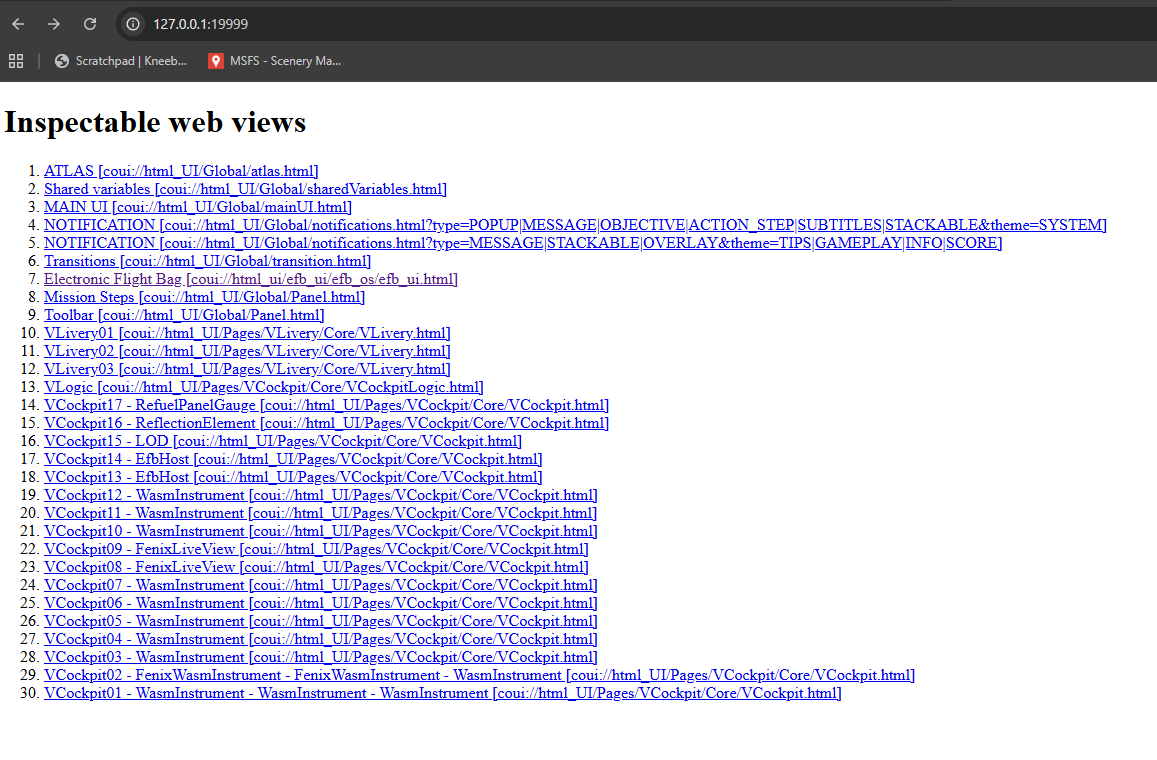 d. Click the line that says Electronic Flight Bag
e. On the page that gets loaded, you may see all sorts of Developer "stuff" that can be ignored. We are going to look towards the top of the page for a tab that says Console. Click that tab.
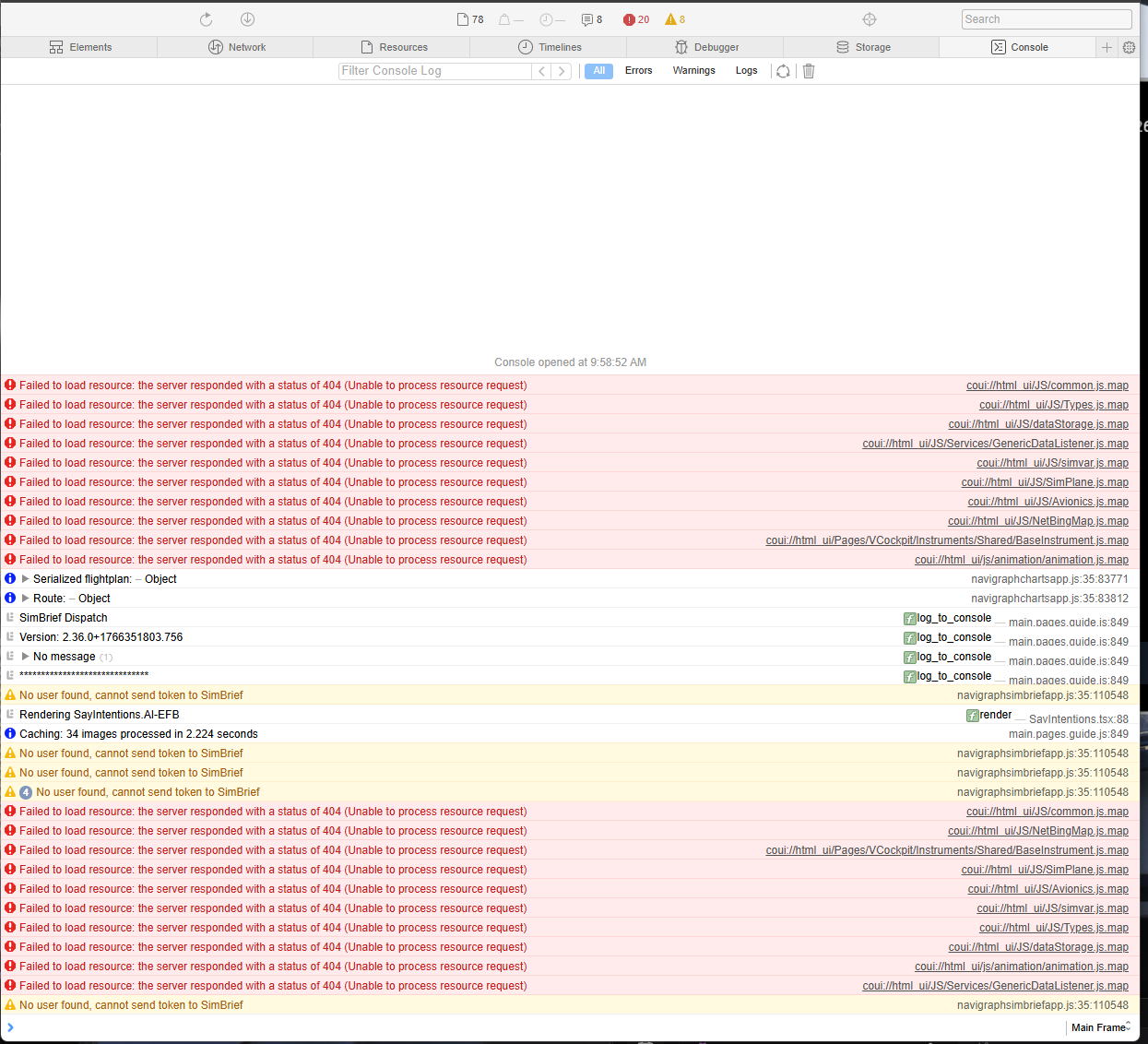
f. The page may change, or you may have already been on the console tab. It should look similar to the image above.
g. On this page, we are again going to ignore all the messages. Just navigate to the very bottom of this page where the > icon is. Type in this field:
location.reload()
h. Then press ENTER
Important: This will reload the entire MSFS 2024 EFB. Therefore, it will reload other EFB apps you may be using as well.
i. The EFB within MSFS 2024 should reboot and the SayIntentions.AI app should now look normal:
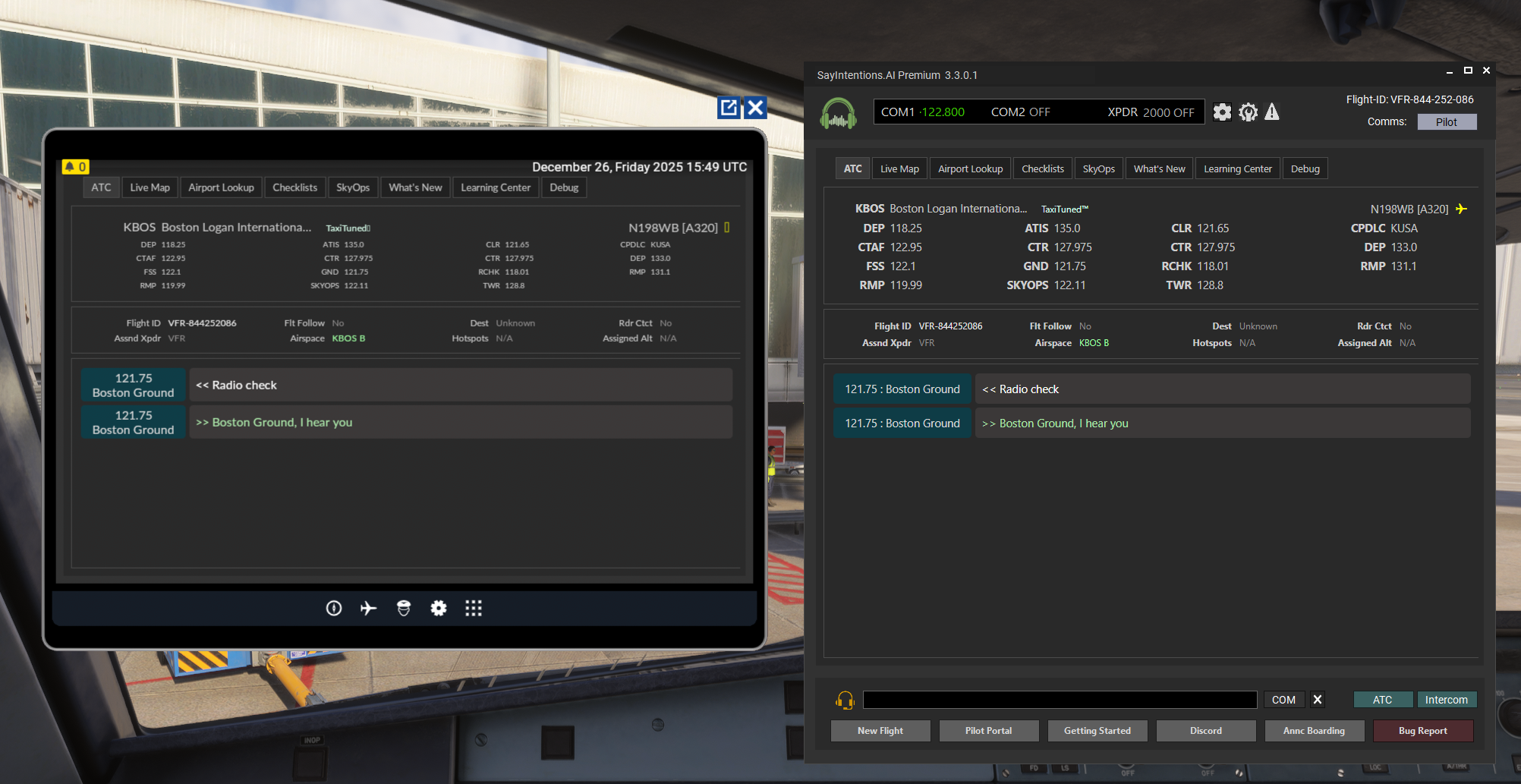
j. You can now close the browser window and resume your flight.
Was this article helpful?
That’s Great!
Thank you for your feedback
Sorry! We couldn't be helpful
Thank you for your feedback
Feedback sent
We appreciate your effort and will try to fix the article